Set Up Your Environment
Startup·5 min read·Jan 27, 2026
In this program, you'll be writing code and running shell commands constantly. But you won't be doing it inside a web browser.
Because backend development doesn't happen in a sandbox. The real playground starts on your own machine, where you control the files, the runtime, the dependencies, the environment variables, the ports, and the processes.
That's why the first step here isn't to write code as fast as possible. It's setting up the tools you'll use as a backend developer, and getting comfortable with them early. Not in a theoretical way, but in a way you can navigate, run, debug, and fix things without panicking.
So let's take the time to set things up properly, and then get to work.
Install Visual Studio Code
To keep things simple, you will use Visual Studio Code for both:
- Writing and editing files.
- Running commands in its built-in terminal, also called command-line interface or console.
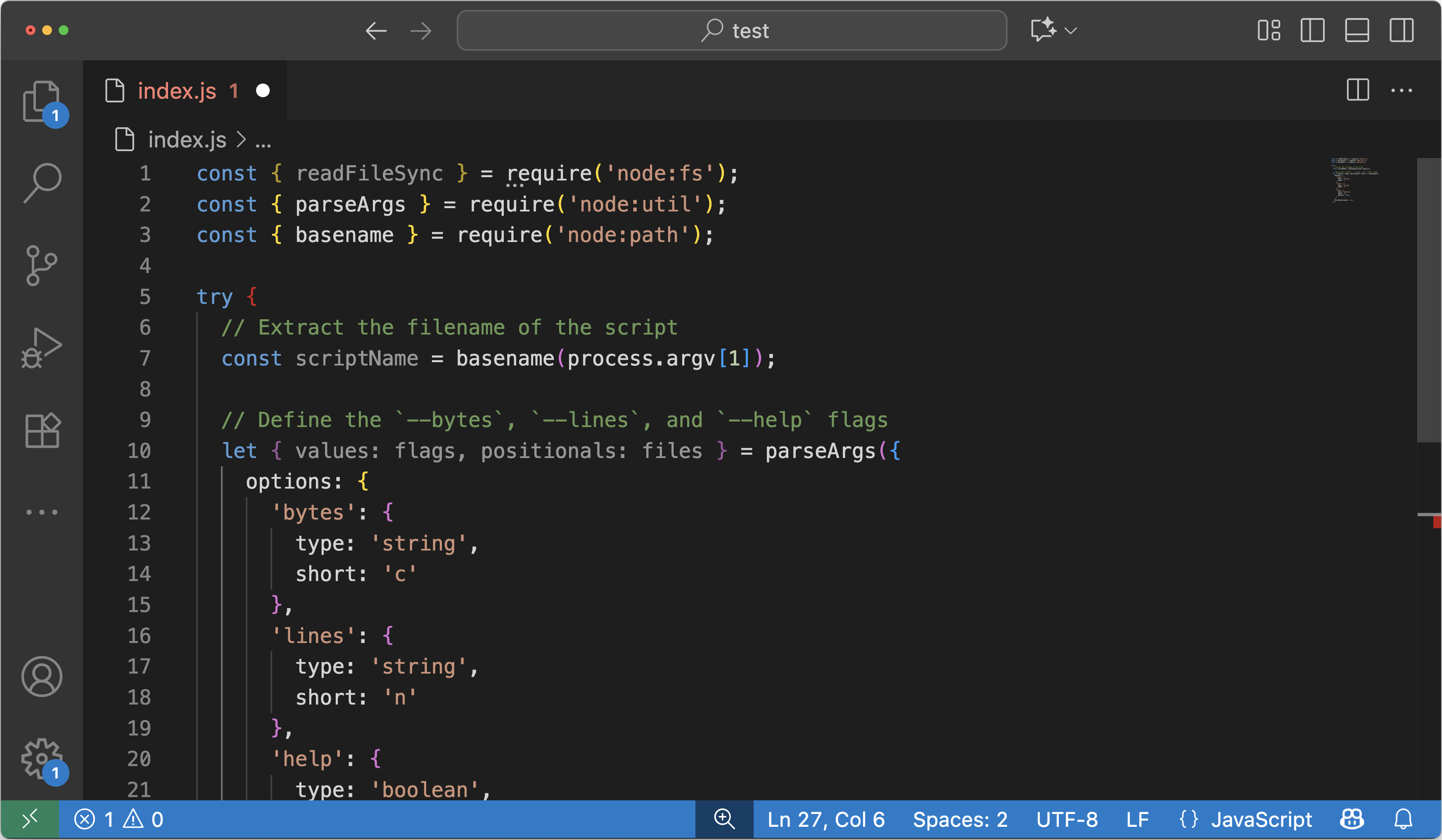
New to VSCode?
If you're entirely new to this code editor, we recommend you read the official tutorial first:
👉 Tutorial: Get started with Visual Studio Code
Windows users: Install WSL and connect VS Code
On Windows, the simplest way to get that environment is WSL (Windows Subsystem for Linux), which lets you run a real Linux terminal on your Windows machine.
Install WSL
-
Open PowerShell as Administrator.
-
Copy-paste this command:
wsl --install -
Restart your computer when prompted.
-
After restart, launch your Linux distribution (usually Ubuntu) from the Start Menu.
-
Create your Linux username and password when asked.
👉 Read the full tutorial: How to install Linux on Windows with WSL
⚠️ If
wsl --installis not available on your system, follow the manual install steps instead. (Microsoft Learn)
Connect VS Code to WSL
-
Install the WSL extension in VS Code (the “Remote Development” extension pack also includes it). (Visual Studio Code)
-
Open a WSL folder in VS Code using one of these options:
-
From your WSL terminal, navigate to your folder and run:
code . -
Or in VS Code, open the Command Palette (
Ctrl + Shift + P), typeWSL, and choose a WSL option (for example opening a new WSL window).
-
-
Once VS Code is connected, the built-in terminal will run inside WSL, so commands like
mkdirandpwdwill work exactly like on Linux/macOS.
💡 Tip: If
code .doesn't work, restart your terminal, and make sure VS Code was installed with “Add to PATH” enabled.
Official tutorials
- Microsoft: Install WSL (Microsoft Learn)
- VS Code: Remote development in WSL (Visual Studio Code)
Install Node.js
The Node Version Manager (NVM) is a command-line tool that allows developers to easily manage multiple installations of Node.js on a single system.
To download and install NVM, run this command in your terminal:
curl -o- https://raw.githubusercontent.com/nvm-sh/nvm/v0.40.3/install.sh | bash
Once downloaded, install the latest available LTS version of Node.js (currently 24) by running this command:
nvm install 24
Once installed, restart your terminal and verify that your Node.js installation works by running these commands:
node -v
npm -v
Create your workspace folder
To keep your code snippets and projects organized, you will create a dedicated workspace folder in your home directory.
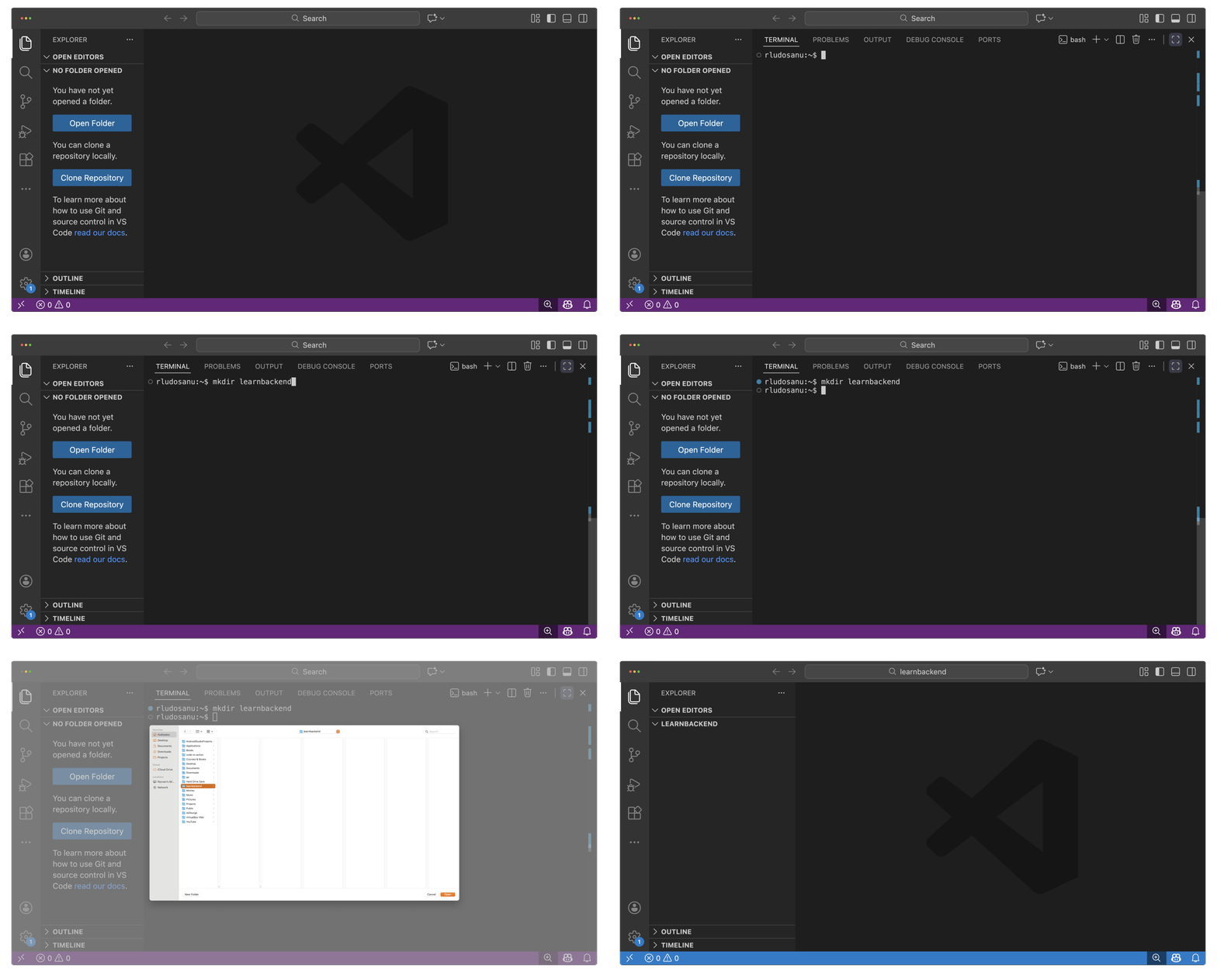
- Launch the Visual Studio Code editor.
- Click on Terminal --> New Terminal to open a terminal window.
- In your home directory, run
mkdir learnbackendto create a new dedicated directory. - In the sidebar, click on Open Folder and select the
learnbackenddirectory.
⚠️ Before running commands in the Terminal, make sure you're in the right working directory using the
pwdcommand.
- On macOS, it should be similar to:
/Users/username/learnbackend- On Linux, it should be similar to:
/home/username/learnbackend
✅ You're all set!
Unlock the full program 🚀
Pay once, own it forever.
€149
30-day money-back guarantee
- 13 modules
- 113 lessons with full-code examples
- 29 projects with commented solutions
- All future lesson and project updates
- Lifetime access
By submitting this form, you agree to the Terms & Conditions and Privacy Policy.